

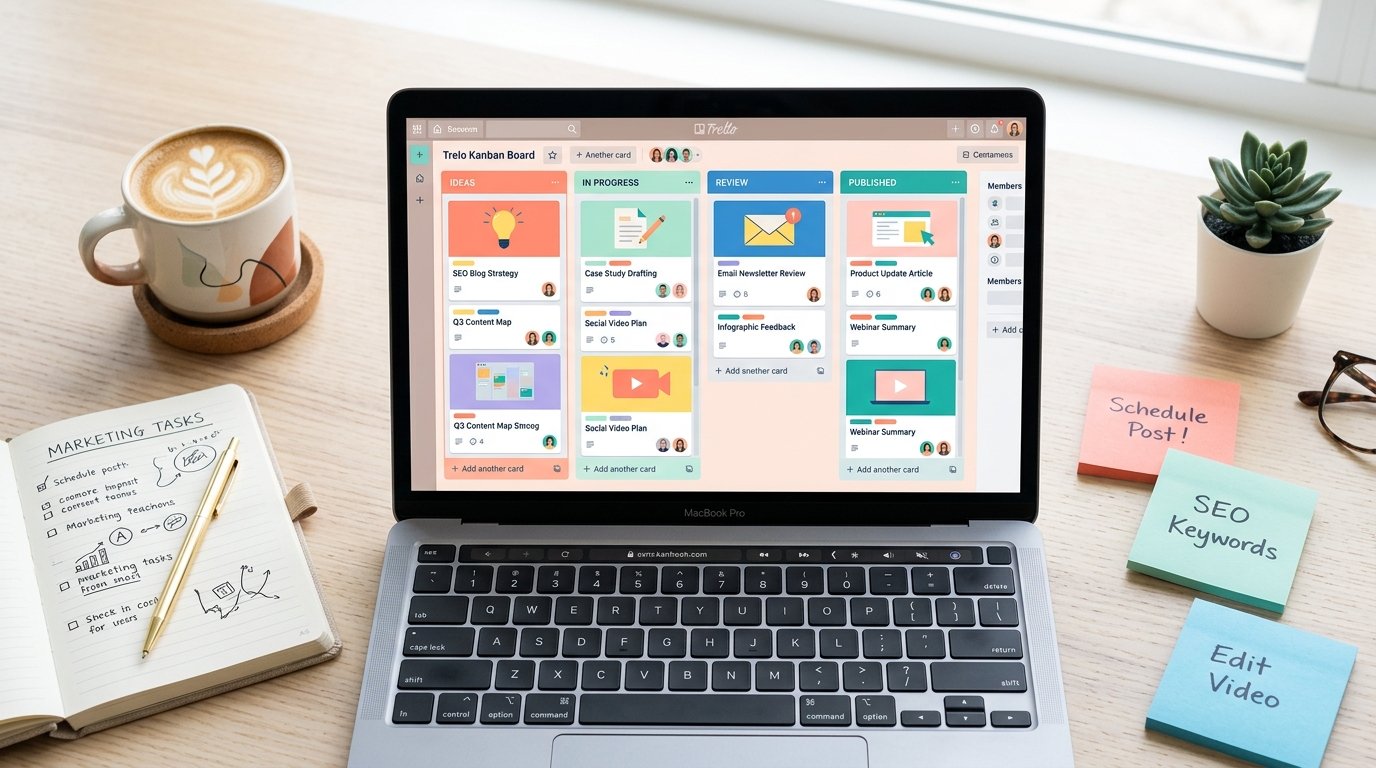
If your content calendar currently lives in three different spreadsheets, a sticky-note wall, and your memory, you’re not alone. Most creators and marketing teams don’t need another app — they need one place that actually works. That’s exactly what a Trello content calendar template solves.
In this guide, you’ll get a complete, free Trello content calendar template you can copy in under five minutes, plus the exact board architecture, list structure, and Power-Ups that turn a plain Kanban board into a real editorial planning system.
Key Takeaways
- A Trello content calendar template gives you a visual, drag-and-drop system for planning, writing, and publishing content without switching tools.
- The ideal board structure uses 5–6 lists that mirror your actual content workflow (Ideas → In Progress → Review → Scheduled → Published).
- Labels, custom fields, and due dates turn a basic board into a functional editorial calendar.
- The Calendar Power-Up is what transforms your Trello board into a true content calendar view.
- You can copy a ready-made template instead of building one from scratch — link below.
Why Use Trello for Your Content Calendar?
Before diving into the setup, it’s worth understanding why Trello works so well for content planning. Unlike rigid spreadsheet templates, Trello’s card-based system mirrors how content actually moves — from a rough idea to a polished, published piece.
A well-built Trello content calendar template gives you:
- Visual workflow tracking — see exactly what stage every piece of content is in at a glance.
- Flexibility — add checklists, due dates, attachments, and comments directly on each card.
- Team collaboration — assign cards to writers, editors, or designers with clear accountability.
- Free to start — Trello’s free plan covers everything a solo creator or small team needs.
Step 1: Set Up Your Board Architecture
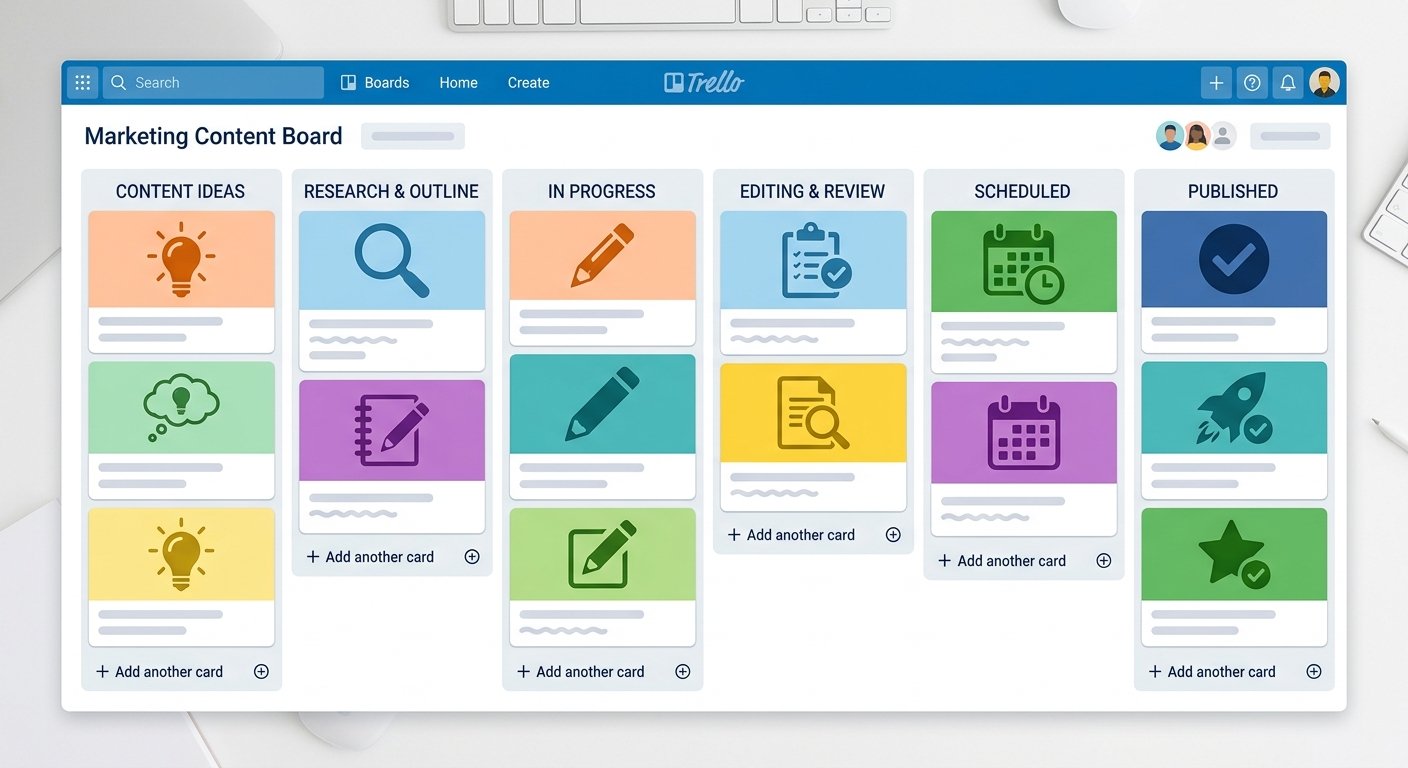
The foundation of any good Trello content calendar template is the list structure. Think of each list as a stage in your editorial pipeline, not just a random column.
Recommended List Structure
- Content Ideas — a backlog for every topic, no matter how rough.
- Research & Outline — cards move here once you commit to writing them.
- In Progress (Drafting) — active writing stage.
- Editing & Review — for feedback, fact-checking, and SEO review.
- Scheduled — content that’s ready and dated for publishing.
- Published — a running archive of everything live.
This six-list structure keeps your Trello content calendar template honest — nothing skips a stage, and nothing gets lost between “idea” and “published.”
H3: Naming Your Board and Lists Correctly
Small detail, big impact: name your board something searchable and specific, like “2026 Blog Content Calendar” rather than just “Content.” This matters if you’re managing multiple boards across teams or clients.
Step 2: Build Cards That Actually Function as a Calendar
A list structure alone isn’t a calendar — the individual cards need to carry real editorial data. Here’s what every card in your Trello content calendar template should include.
Essential Card Elements
- Title — the working headline or topic.
- Due date — this is what powers the calendar view.
- Labels — content type (blog, social, email, video) and priority level.
- Checklist — sub-tasks like “write outline,” “add images,” “SEO review.”
- Description — target keyword, audience, and content goal.
- Attachments — briefs, drafts, or brand assets.
H3: Using Labels to Organize Content Types
Color-coded labels are one of the most underused features in Trello. Set up labels for content pillar categories (like “Trello Templates,” “Productivity Tips,” “Case Studies”) so you can filter your board and instantly see how balanced your calendar is across topics.
Step 3: Activate the Calendar Power-Up
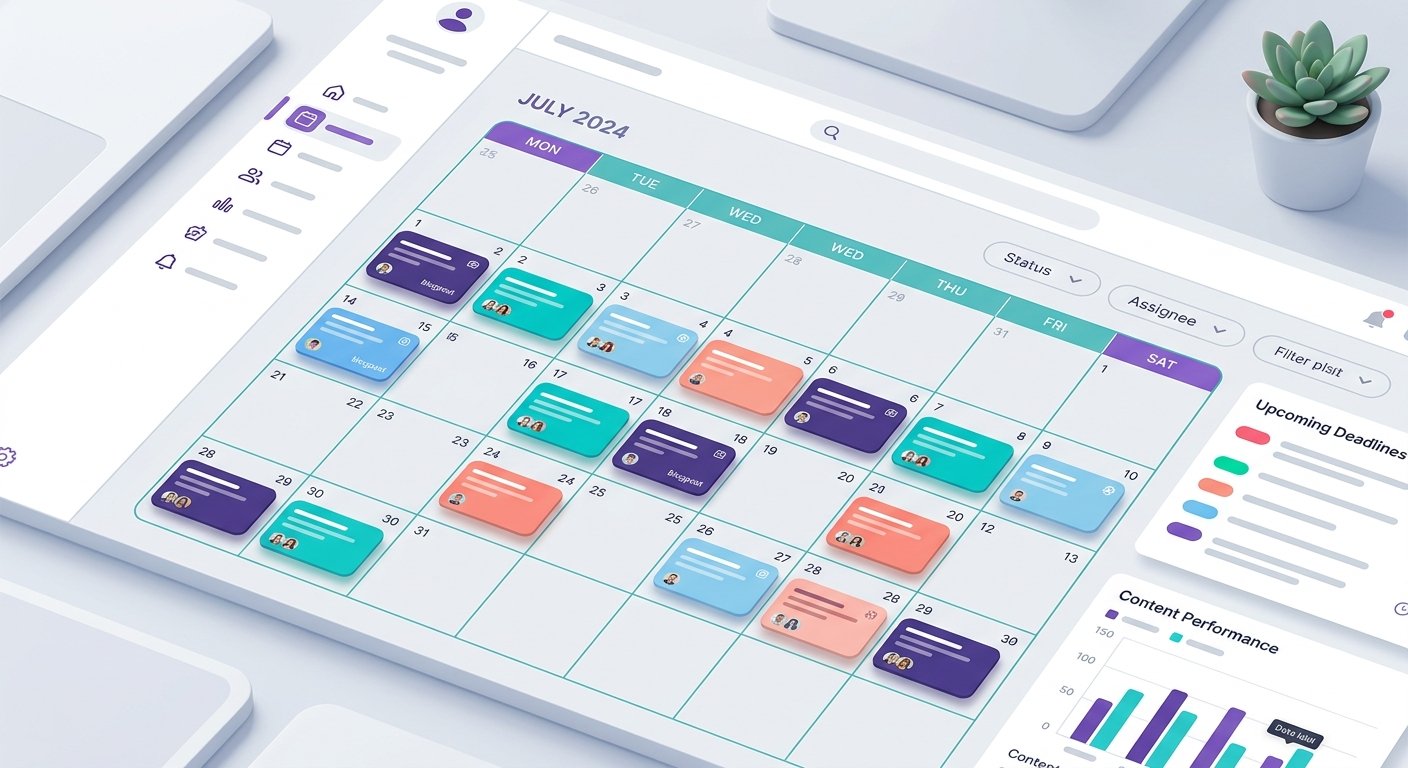
This is the step that turns a standard Kanban board into an actual Trello content calendar template. Trello’s built-in Calendar Power-Up displays every card with a due date on a monthly calendar view.
How to Enable It
- Open your board and click Power-Ups in the menu.
- Search for Calendar and click Add.
- Once enabled, a new “Calendar” tab appears at the top of your board.
- Every card with a due date will automatically populate on the calendar.
This single feature eliminates the need for a separate spreadsheet-based calendar entirely — your board and your calendar become the same living document.
Other Power-Ups Worth Adding
- Custom Fields — track word count, content status, or assigned writer directly on the card front.
- Card Repeater — automate recurring content like weekly newsletters.
- Butler Automation — auto-move cards between lists based on due dates or checklist completion.
Step 4: Customize the Template for Your Content Type
Every niche has different content rhythms, so your Trello content calendar template should flex to match yours.
For Bloggers
Add a “SEO Checklist” card template with fields for focus keyword, meta description, and internal links — so nothing ships without on-page optimization.
For Social Media Teams
Duplicate the list structure per platform (Instagram, LinkedIn, TikTok) or use swimlanes with labels to separate platforms within one board.
For Agencies Managing Multiple Clients
Create one board per client using this same template, then use Trello’s Workspace view to see all client calendars at a glance without opening each board individually.
Step 5: Maintain and Scale Your Calendar
A content calendar only works if it’s kept current. Build these habits into your workflow:
- Weekly review — move cards, update due dates, and clear the “Ideas” backlog of anything stale.
- Monthly audit — check the Calendar Power-Up view for gaps or overloaded weeks.
- Archive published cards quarterly — keep your active board lightweight and fast to scan.

Common Mistakes to Avoid
- Skipping due dates — without them, the Calendar Power-Up has nothing to display.
- Too many lists — more than seven stages tends to slow teams down rather than help.
- No archiving system — boards left cluttered with old cards become harder to navigate over time.
- Ignoring labels — without color-coded categories, it’s hard to see content balance at a glance.
Conclusion
A well-structured Trello content calendar template is one of the fastest ways to bring order to a chaotic content workflow — without paying for a dedicated calendar tool. By setting up the right list architecture, enabling the Calendar Power-Up, and building consistent card habits, you turn a simple Kanban board into a complete editorial command center. Copy the template, customize it to your workflow, and you’ll have a functioning content calendar running before your next planning meeting.
FAQs
Is there a free Trello content calendar template available? Yes — Trello’s free plan supports everything needed to build and run a full content calendar template, including the Calendar Power-Up, labels, and custom fields.
How do I turn a Trello board into a content calendar? Add due dates to your cards, then enable the built-in Calendar Power-Up from the Power-Ups menu. This automatically displays all dated cards on a monthly calendar view.
What’s the best list structure for a Trello content calendar template? A six-list structure — Ideas, Research & Outline, In Progress, Editing & Review, Scheduled, and Published — covers most editorial workflows without becoming overly complex.
Can I use a Trello content calendar template for social media planning? Yes. Many teams duplicate the core list structure per platform or use labels to separate content types within a single shared board.
How often should I update my Trello content calendar? A weekly review to move cards and adjust due dates, plus a monthly audit of the calendar view, keeps the board accurate and useful.

6 thoughts on “Free Trello Content Calendar Template: Complete Setup Guide (2026)”