


You go to move a card, and nothing happens — it just sits there while your cursor slides right past it. Trello drag-and-drop not working is one of the most common frustrations reported by users, and it usually comes down to a small handful of causes: a browser glitch, a stuck system process, or a recent update that changed how dragging behaves.
Below are five fast, proven solutions to get your board moving again, starting with the quickest fixes first.
Key Takeaways
- Trello drag-and-drop not working is most often caused by browser cache issues, stuck background processes, or device-specific input bugs.
- A simple page refresh or browser restart resolves the issue in many cases.
- Dragging from the wrong part of a card or checklist item can look like a bug but is actually expected behavior.
- Mobile and touch-device drag-and-drop can behave differently than desktop and may need a different fix.
- If none of the standard fixes work, the issue may be a temporary Trello-side bug worth reporting.
Why Trello Drag-and-Drop Stops Working
Before troubleshooting, it helps to understand what’s actually going wrong. Trello’s drag-and-drop relies on your browser (or app) correctly tracking mouse or touch movement alongside the board’s interface. When that tracking breaks — due to a cache conflict, a stuck process, or a recent interface update — cards stop responding to drag actions even though everything else on the board still works normally.
Solution 1: Refresh the Page or Restart the Browser
This is the fastest fix and resolves the issue more often than you’d expect. Trello occasionally loses track of drag events after a long session, and a simple refresh resets that connection.
H3: Steps to Try
- Press F5 or click the browser refresh button.
- If refreshing doesn’t help, fully close and reopen the browser.
- Test dragging a card again before moving to the next solution.
Several users have reported that this alone restored drag-and-drop functionality without needing any deeper fix.
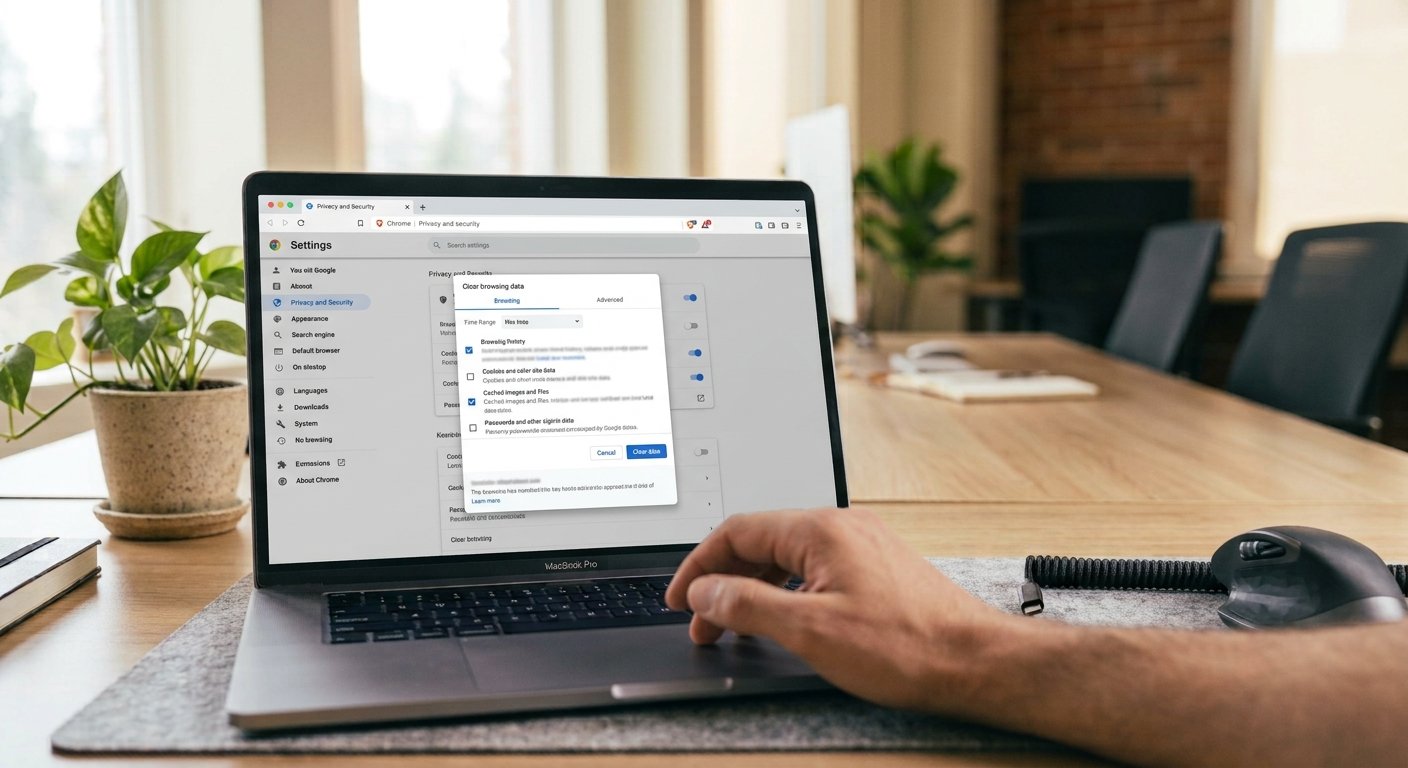
Solution 2: Clear Your Browser Cache
If Trello is the only tool on your device having drag-and-drop trouble, cached files may be interfering with how the board’s scripts load.
H3: How to Clear Cache
- Open your browser settings and find Privacy or Clear Browsing Data.
- Select Cached images and files (you can leave passwords and history unchecked).
- Clear the cache, then restart the browser and reload Trello.
Solution 3: Check Where You’re Clicking to Start the Drag
This one isn’t a bug at all — it’s a common misunderstanding. On certain cards, especially checklist items or cards containing links, clicking directly on the text won’t initiate a drag. You need to click the empty space around the text instead.
H3: How to Fix It
- Click and hold on the blank area of the card or checklist item, not directly on the text or a linked title.
- If the item is a link to another Trello card, dragging from the text specifically will not work — use the surrounding space instead.
This distinction has caused confusion for many users who assumed their board was broken when the drag zone was simply narrower than expected.
Solution 4: Restart Your Computer to Clear Stuck System Processes
If drag-and-drop is broken across multiple applications on your device, not just Trello, the issue is likely at the system level rather than inside the browser.
H3: Quick System-Level Fixes
- Press the ESC key twice — this can reset a stuck drag process tied to your mouse driver.
- Restart your computer — a full restart clears any hung background process interfering with drag input.
- Check for conflicting software — certain screen-sharing, remote-desktop, or automation tools can interfere with drag-and-drop across all applications.
If dragging works fine in other apps but not in Trello specifically, skip this solution and focus on the browser-based fixes instead.

Solution 5: Check for Device-Specific or Mobile Issues
Drag-and-drop can behave differently depending on the device you’re using, particularly on touch screens and certain mobile operating systems.
H3: On Mobile or Tablet
- Use a long-press before dragging rather than a quick tap-and-drag motion, as Trello’s mobile interface often requires a firmer touch hold to register the action.
- Update the Trello app to the latest version, since drag behavior on mobile is refined frequently through app updates.
H3: On Kiosk Mode or Locked-Down Systems
If you’re using Trello on a restricted or kiosk-mode setup (common in shared office computers or public terminals), drag-and-drop may not function at all due to how those environments restrict browser interactions. This is a known limitation rather than something fixable through standard troubleshooting.

When to Report the Issue to Trello
If you’ve tried all five solutions and drag-and-drop is still broken, the problem may be a temporary bug on Trello’s end rather than something on your device. This has happened before after interface updates that unintentionally changed drag behavior.
H3: What to Include in a Report
- Your browser and operating system (or device model if on mobile)
- A short screen recording showing the issue
- Whether the problem happens on all boards or just one specific board
Providing this detail speeds up diagnosis significantly, since drag-and-drop bugs are often browser- or version-specific and difficult to reproduce without exact details.
Common Mistakes to Avoid
- Assuming it’s always a bug — clicking directly on text or a link is a frequent, easily fixed cause.
- Skipping the simple refresh — many users jump to advanced fixes before trying the fastest one first.
- Not checking other apps — confirming whether the issue is Trello-specific or system-wide saves time troubleshooting the wrong layer.
- Ignoring app updates on mobile — outdated app versions are a common source of inconsistent drag behavior.
Conclusion
Trello drag-and-drop not working is almost always fixable without any technical expertise — starting with a simple refresh, clearing your cache, checking your click position, restarting your system, or accounting for device-specific quirks on mobile. Work through these five solutions in order, and in most cases, your board will be back to smooth dragging within minutes. If the problem persists after trying all five, reporting it to Trello with clear details is the fastest path to a resolution.
FAQs
Why is my Trello drag-and-drop suddenly not working? This is usually caused by a browser cache issue, a stuck system process, or a recent Trello interface update that temporarily changed drag behavior.
How do I fix Trello drag-and-drop not working on mobile? Try a long-press before dragging instead of a quick tap, and make sure your Trello app is updated to the latest version.
Does clearing my browser cache fix Trello drag-and-drop issues? Yes, clearing cached files often resolves the issue when Trello is the only tool experiencing drag-and-drop problems on your device.
Why can’t I drag a checklist item in Trello? You may be clicking directly on the item’s text or a linked card title — try clicking the empty space around the text instead to initiate the drag.
Is Trello drag-and-drop not working a known bug? It can be, particularly after interface updates or on restricted environments like kiosk mode, where drag-and-drop is a known limitation rather than a fixable issue.

1 thought on “How to Fix Trello Drag-and-Drop Not Working (5 Fast Solutions)”