


Recreating the same card every week for your newsletter draft, or every month for a content performance report, wastes time that should go toward the actual work. The Trello Card Repeater Power-Up solves this by automatically duplicating a card — along with its description, checklists, and comments — on whatever schedule you set, so recurring editorial tasks appear on your board without anyone lifting a finger.
This guide covers exactly how to enable and configure the Card Repeater Power-Up, plus the best practices for using it specifically with recurring content work.
Key Takeaways
- The Trello Card Repeater Power-Up automatically creates a copy of a card on a weekly, monthly, or yearly schedule.
- Repeated cards carry over the original’s description, checklists, and comments, saving setup time on every recurrence.
- Free Trello accounts are limited to one Power-Up per board, so the Card Repeater may need to be your only active Power-Up unless you’re on a paid plan.
- Archiving a repeating card does not stop it from repeating — the Power-Up must be disabled or the individual repeat canceled directly.
- Due dates on repeated cards are not automatically adjusted, so factor that into how you set up recurring editorial deadlines.
Why Editorial Teams Need the Card Repeater Power-Up
Editorial calendars are full of recurring commitments — a weekly newsletter, a monthly content audit, a quarterly planning session. Recreating these cards manually each time is a small task that adds up to real wasted time over a year, and it’s an easy step to forget during a busy week. The Trello Card Repeater Power-Up removes that manual step entirely, so recurring editorial work shows up on your board automatically, exactly when you need to see it.
Step 1: Enable the Card Repeater Power-Up
Getting started takes only a couple of clicks.
H3: Activation Steps
- Open the board you want to use for recurring editorial tasks.
- Click the board Menu icon (the three-dot ellipsis).
- Select Power-Ups from the menu.
- Search for “Card Repeater” in the Power-Ups directory.
- Click Add to enable it on your board.
H3: A Note for Free Plan Users
If you’re on Trello’s free plan, keep in mind that free boards are limited to one active Power-Up at a time. If you’re already using another Power-Up, like the Calendar Power-Up, you’ll need to choose which one takes priority, or upgrade to a paid plan to run both simultaneously.

Step 2: Set Up a Repeating Card
Once the Power-Up is active, every card on your board gains a new repeat option.
H3: How to Configure the Repeat
- Open the card you want to make recurring.
- In the Power-Ups section on the card’s right sidebar, click Repeat.
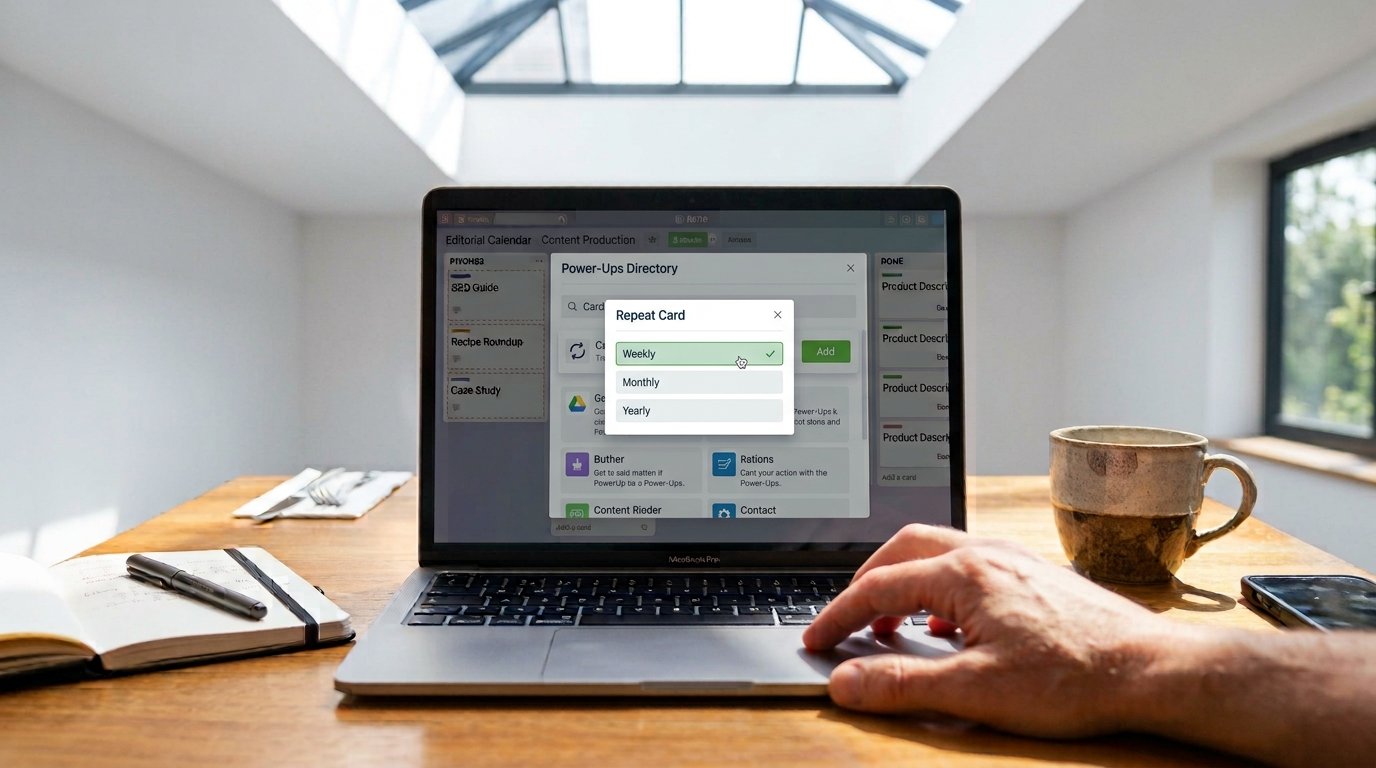
- In the Repeat Card popup, choose how often it should repeat: Weekly, Monthly, or Yearly.
- Select which list the new card should be created in — this can be a different list than the original, which is useful for sending fresh recurring cards straight into your “Content Ideas” list.
- Click Save.
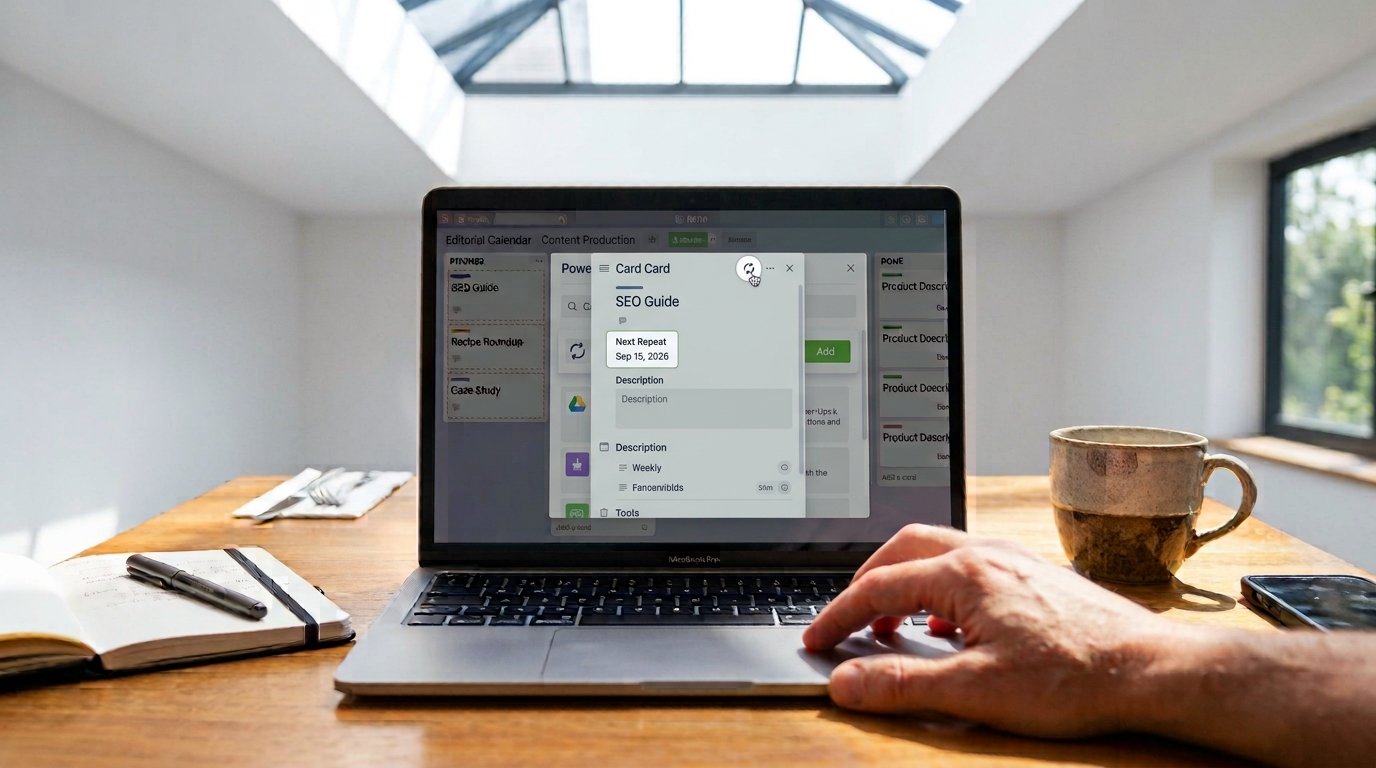
Once saved, the original card displays a Next Repeat date above its description, and a Card Repeater badge appears on the card front so you can see at a glance which cards are set to recur.
Step 3: Understand the Repeat Frequency Options
The Card Repeater Power-Up offers three base frequency options, but they can be combined to create more flexible schedules.
H3: Weekly
Choose specific days of the week for the card to repeat. Selecting every day effectively creates a daily recurring card, since there’s no separate “daily” option — daily recurrence is achieved by selecting all seven days under the weekly setting.
H3: Monthly
The card repeats once on a chosen day each month — useful for recurring tasks like a monthly content performance report or a monthly editorial calendar review.
H3: Yearly
The card repeats once per year on a specific date, suited to tasks like an annual content audit or yearly style guide review.
Step 4: Apply This to Common Editorial Use Cases
The Card Repeater Power-Up works especially well for editorial tasks that follow a predictable rhythm.
H3: Weekly Newsletter Draft
Set a card to repeat weekly, landing directly in your “Content Ideas” or “Drafting” list, so the newsletter is never accidentally skipped during a busy week.
H3: Monthly Content Performance Review
A card that repeats monthly can carry a standing checklist — pull traffic data, review top-performing posts, note underperforming content — so the review process stays consistent every time.
H3: Recurring Team Check-Ins
For editorial teams running weekly content meetings, a repeating card can hold the agenda template, discussion notes, and action items, refreshing automatically before each meeting.
Step 5: Know the Power-Up’s Limitations
The Card Repeater Power-Up is simple by design, which means a few behaviors are worth knowing upfront so they don’t cause confusion later.
H3: Archiving Doesn’t Stop the Repeat
Archiving a repeating card does not cancel its recurrence — Trello will still generate the next copy on schedule. To fully stop a card from repeating, you need to either edit its repeat settings directly or disable the Power-Up entirely.
H3: Due Dates Aren’t Automatically Updated
The Card Repeater creates an exact copy of the original card, which means a due date on the original card is not automatically shifted forward on each new copy. If your recurring editorial task needs a fresh due date every time, you’ll need to set that manually on each new card, or pair the Power-Up with a Butler automation rule that adjusts dates after creation.
H3: One Power-Up Limit on Free Boards
As mentioned earlier, free Trello boards can only run one Power-Up at a time. Teams relying on both the Calendar Power-Up and Card Repeater will need a paid Trello plan to use both together on the same board.
Step 6: Combine with Other Automations for a Complete System
The Card Repeater Power-Up handles card creation, but pairing it with Trello’s Butler automation can close the gaps it leaves open.
- Auto-update due dates on newly repeated cards using a Butler rule tied to the list the card lands in.
- Auto-assign a team member to every new recurring card so ownership is clear from the moment it appears.
- Auto-notify the relevant writer or editor when a new recurring card is created, so it doesn’t go unnoticed in a busy list.
Common Mistakes to Avoid
- Assuming archiving stops a repeat — the card will keep regenerating unless the repeat setting itself is changed or the Power-Up is disabled.
- Forgetting the one-Power-Up limit on free boards — this can silently disable a Power-Up you thought was still active.
- Not accounting for static due dates — recurring cards won’t automatically shift deadlines forward on their own.
- Setting up recurrence without a checklist — the real time-saving value comes from repeated checklists and descriptions, not just a repeated title.
Conclusion
The Trello Card Repeater Power-Up turns recurring editorial work — newsletters, monthly reviews, recurring meetings — into something that simply appears on your board when needed, without manual recreation each time. By enabling the Power-Up, configuring the right frequency, and understanding its handful of limitations around due dates and archiving, you can build a genuinely hands-off system for the repetitive parts of your editorial calendar. Pair it with Butler automation for due dates and notifications, and recurring tasks stop being something you have to remember at all.
FAQs
How do I stop a Trello card from repeating? Archiving the card does not stop the repeat — you need to open the card’s repeat settings and cancel it directly, or disable the Card Repeater Power-Up entirely from the board’s Power-Ups menu.
Can the Trello Card Repeater Power-Up create daily recurring cards? Yes, by selecting the Weekly option and choosing all seven days, you can effectively create a card that repeats daily.
Does the Trello Card Repeater Power-Up update due dates automatically? No, repeated cards are exact copies of the original, so due dates are not automatically adjusted and typically need to be set manually or handled through a separate Butler automation.
Is the Trello Card Repeater Power-Up free to use? Yes, it’s available on Trello’s free plan, though free boards are limited to using only one Power-Up at a time.
What happens to comments and checklists on a repeated Trello card? The Card Repeater Power-Up carries over the original card’s description, checklists, and comments to each new copy it creates.
