

A webhook that worked fine during testing suddenly starts failing once real traffic hits it — data stops updating, and your automated workflow grinds to a halt with no clear explanation. A Google Sheets webhook timeout is almost always traceable to one of a handful of specific causes: Apps Script execution limits, permission misconfigurations, or concurrent requests colliding with each other.
This guide breaks down exactly why these timeouts happen and how to fix each cause, based on the actual architecture Google Sheets webhooks run on.
Key Takeaways
- A Google Sheets webhook timeout is frequently caused by Google Apps Script’s execution time limits, not the receiving spreadsheet itself.
- Webhooks depend on a
doPost()function deployed as a web app — misconfigured deployment settings are a common, easily fixed cause of failures. - Simple triggers can’t call
UrlFetchApp, so workflows depending on external API calls need installable triggers instead. - Concurrent webhook calls writing to the same sheet can collide without
LockServiceproperly implemented. - A structured setup — separate Config, Data, and Status sheets — makes timeout issues far easier to diagnose than a single flat sheet.
Why Google Sheets Webhooks Time Out
Google Sheets webhooks work through Google Apps Script: you write a doPost() function to receive incoming data, deploy it as a web app, and use the generated URL as your webhook endpoint. When something in that chain breaks down — execution taking too long, permissions blocking the request, or two requests hitting the script simultaneously — the result is a Google Sheets webhook timeout that can look identical from the outside regardless of its actual cause.
Cause 1: Apps Script Execution Time Limits
Google Apps Script enforces a maximum execution time per script run. If your doPost() function is doing too much work in a single execution — heavy data processing, multiple slow API calls, or looping through large datasets — it can exceed that limit and time out before finishing.
H3: How to Fix This
- Simplify the webhook receiver itself. Have
doPost()do the minimum needed — log the incoming data and return a response quickly — then process the data in a separate, time-driven trigger rather than doing everything synchronously. - Batch processing instead of looping row-by-row. Writing to the sheet in a single batch operation is significantly faster than looping through individual cell writes.
- Move heavy logic out of the webhook path entirely. Use the webhook purely to capture and queue data, with a separate scheduled function handling the actual processing.

Cause 2: Incorrect Deployment Settings
A webhook deployed with the wrong access settings will fail before your script logic even runs, which can present itself as a timeout to the sending application waiting on a response.
H3: Correct Deployment Configuration
- In the Apps Script editor, go to Deploy > New deployment.
- Set the deployment type to Web app.
- Set Execute as to your own account, so the script runs with your permissions regardless of who triggers it.
- Set Who has access to Anyone, so external services can reach the endpoint without needing to authenticate as you.
H3: A Common Enterprise Account Issue
If you’re using a Google Workspace (enterprise) account, admin-level restrictions can block public web app publishing entirely. Domain administrators can enable this setting, or you can build and test the webhook from a personal Google account if lowering domain-wide security settings isn’t an option.
Cause 3: Using a Simple Trigger Instead of an Installable Trigger
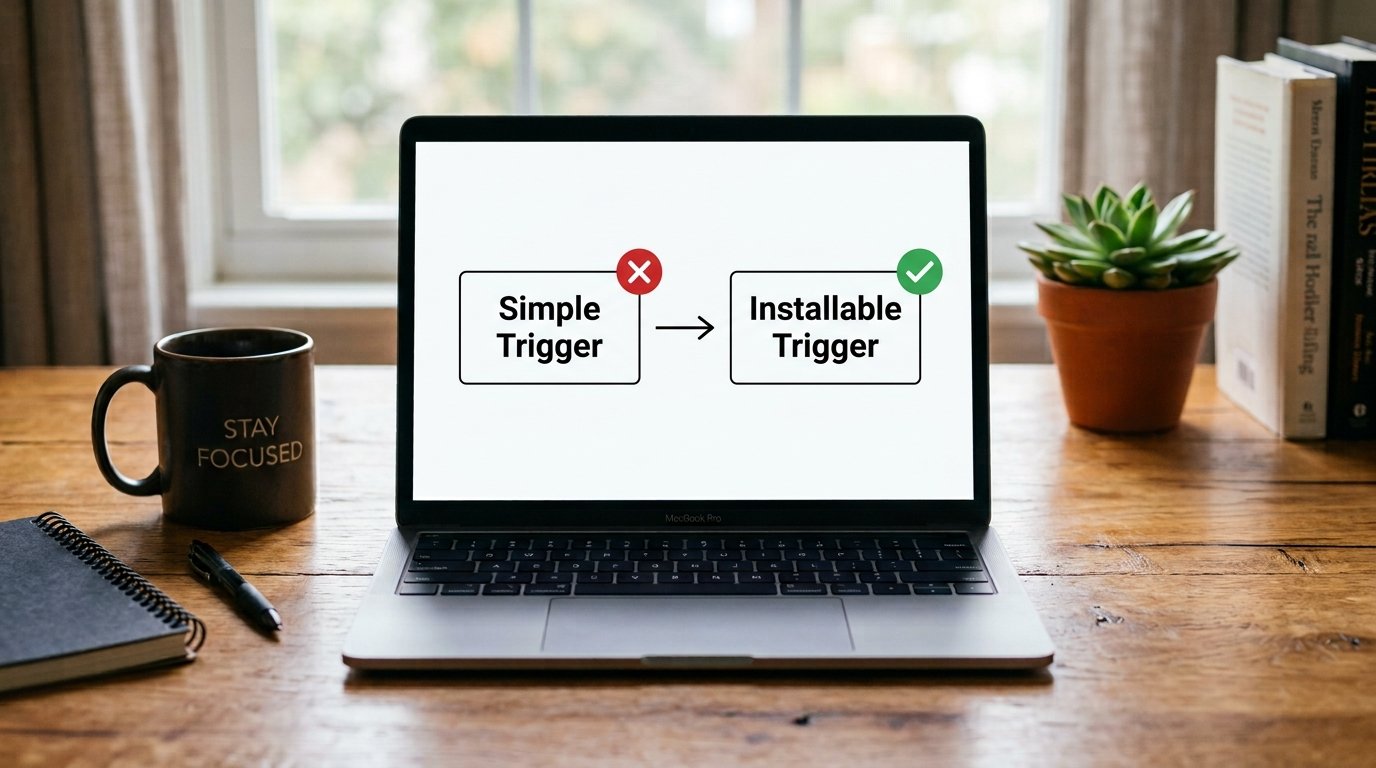
This is a frequent, easy-to-miss cause of failures that look like timeouts. Apps Script’s simple triggers (like a basic onEdit() function) cannot call UrlFetchApp, which is required for many webhook-related operations involving external API calls.
H3: How to Fix This
Set up an installable trigger instead of relying on a simple trigger whenever your script needs to make outbound HTTP requests. Installable triggers are configured through the Apps Script editor’s trigger menu rather than relying on Apps Script’s automatic function-name detection, and they support the full range of Apps Script services, including UrlFetchApp.
Cause 4: Concurrent Requests Colliding
If your webhook receives multiple requests in quick succession — common with high-volume automated workflows — simultaneous script executions can collide while trying to write to the same sheet, causing errors or apparent timeouts as scripts wait on each other.
H3: How to Fix This with LockService
Implement Apps Script’s LockService around the section of your code that writes to the sheet. This ensures only one execution can write at a time, queuing others briefly rather than letting them collide and fail. For workflows expecting frequent concurrent webhook calls, this is one of the most important reliability fixes to implement early rather than after problems appear in production.
Cause 5: No Separation Between Data, Config, and Status
A flat, single-sheet setup makes it genuinely difficult to diagnose where a timeout or failure occurred, since successful writes, configuration values, and error logs are all mixed together.
H3: A More Reliable Sheet Structure
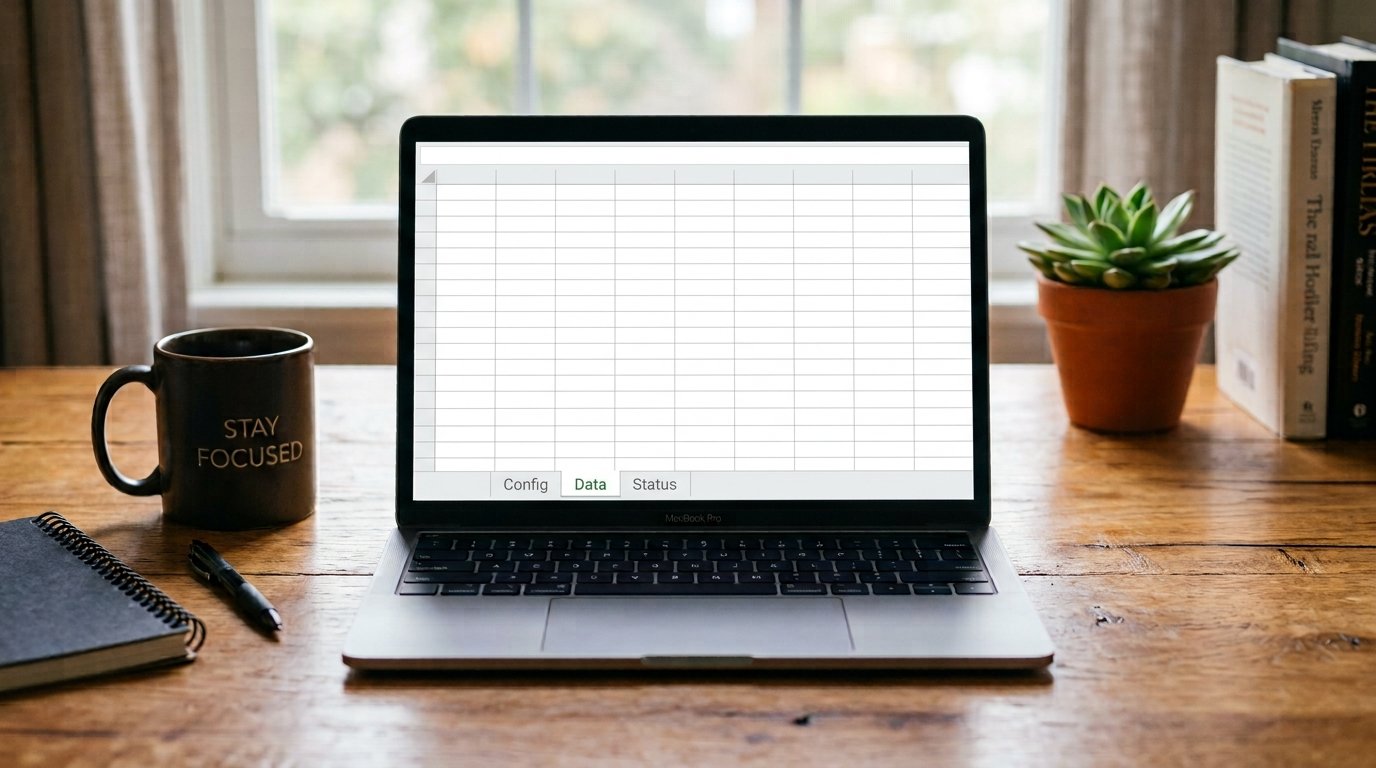
- Config sheet — stores mapping values and settings your script references, kept separate from live data
- Data sheet — where actual webhook payloads are written for human review
- Status sheet — logs each execution’s outcome, including timestamps and error messages, giving you a clear audit trail when something fails
This structure doesn’t prevent timeouts on its own, but it dramatically speeds up diagnosing which cause is actually responsible when one occurs.
How to Diagnose Which Cause Applies to You
- Check your Status sheet or execution logs first — Apps Script’s built-in execution log shows exactly how long a run took and where it failed.
- Test the webhook in isolation — send a manual test request and time how long it takes to respond, independent of the system triggering it in production.
- Check for concurrent calls — if timeouts correlate with high-traffic periods,
LockServiceimplementation is likely missing or misconfigured. - Verify deployment settings — confirm “Execute as” and “Who has access” are still set correctly, since these can be accidentally reset during redeployment.
Common Mistakes to Avoid
- Doing all processing inside
doPost()— heavy logic inside the webhook receiver itself is one of the most common causes of execution time limit failures. - Forgetting installable triggers for external calls — a simple trigger silently failing on
UrlFetchAppcan look identical to a generic timeout. - Skipping
LockServicefor high-volume workflows — this becomes a problem the moment traffic increases, even if testing with single requests never revealed it. - Mixing data, config, and logs in one sheet — this makes diagnosing the actual cause of a timeout far slower than it needs to be.
Conclusion
A Google Sheets webhook timeout is rarely a mysterious, unfixable problem — it almost always traces back to execution time limits, deployment misconfiguration, trigger type mismatches, or concurrency issues that collide under real traffic. By simplifying your webhook receiver, confirming correct deployment settings, using installable triggers for external API calls, implementing LockService for concurrent requests, and structuring your sheet with clear Config, Data, and Status tabs, you can diagnose and resolve these failures with confidence instead of guessing. Work through these five causes systematically, and your automated workflow will handle real-world traffic reliably.
FAQs
Why does my Google Sheets webhook keep timing out? This is most often caused by Apps Script’s execution time limits, incorrect deployment settings, or concurrent requests colliding while writing to the same sheet.
What is the maximum execution time for a Google Apps Script webhook? Apps Script enforces a maximum execution time per script run, which is why heavy processing inside a webhook’s doPost() function is a common cause of timeouts.
Why can’t my Google Sheets script make an external API call from a trigger? Simple triggers, like a basic onEdit() function, cannot call UrlFetchApp — you need to set up an installable trigger instead for any workflow involving outbound API calls.
How do I prevent concurrent webhook requests from causing errors in Google Sheets? Implementing Apps Script’s LockService around the section of your code that writes to the sheet ensures only one execution writes at a time, preventing collisions.
Can enterprise Google Workspace accounts cause webhook deployment issues? Yes, admin-level restrictions on Workspace accounts can block public web app publishing, which either requires an administrator to enable it or testing from a personal Google account instead.

1 thought on “How to Fix Google Sheets Webhook Timeouts in Automated Workflows”