

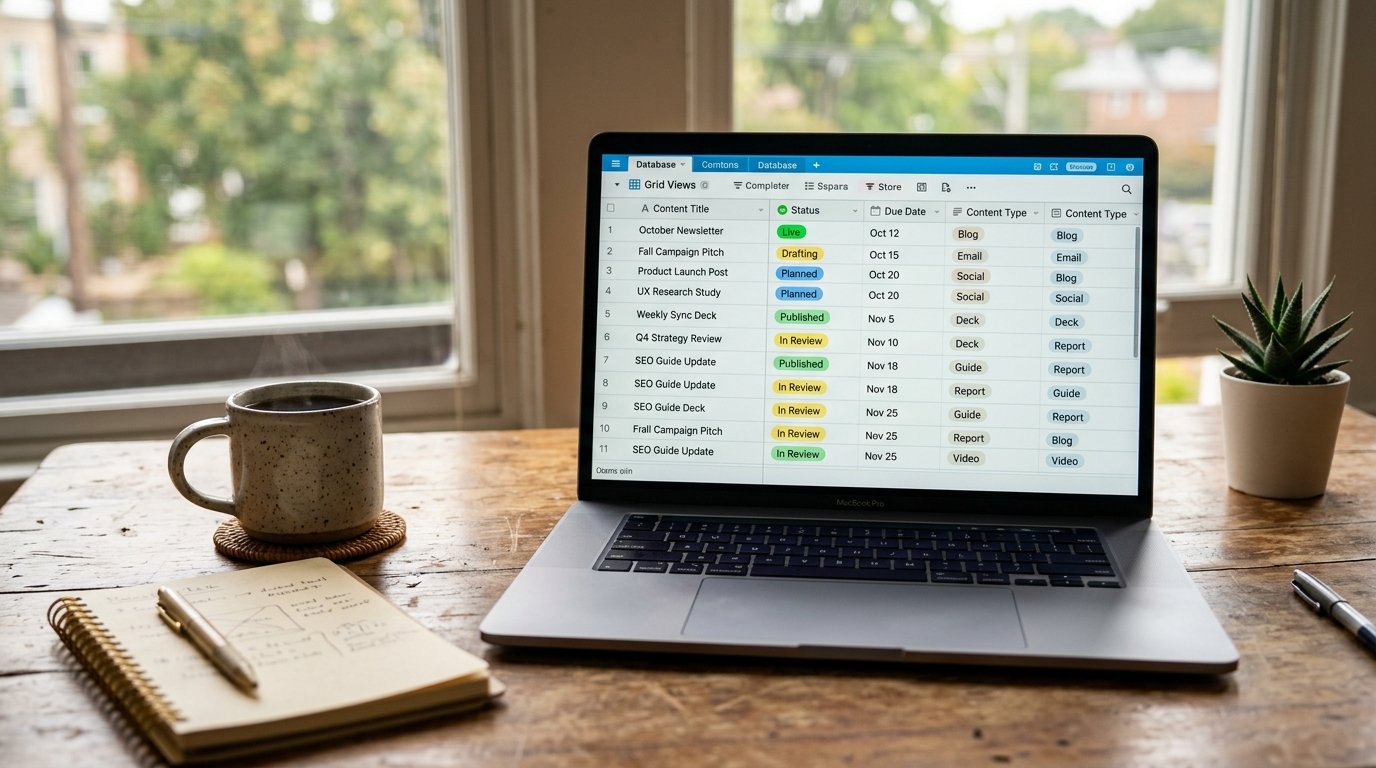
Spreadsheets get messy fast once you’re tracking writers, deadlines, SEO data, and publishing status all at once. Using Airtable for content management solves that by combining the familiarity of a spreadsheet with the flexibility of a real database — letting you filter, link, and view your content from as many angles as your workflow needs.
This guide walks through exactly how to set up Airtable for content management, including a free board template you can copy and start using today.
Key Takeaways
- Airtable for content management works best when your content is structured as a base — rows for content, fields for every detail that matters.
- Views let you see the same content data as a Kanban board, calendar, grid, or gallery without duplicating information.
- Linked records connect your content table to writers, campaigns, or keyword research in separate tables.
- Automations can handle status updates, reminders, and notifications without manual tracking.
- A free board template is included below to skip the setup process entirely.
Why Use Airtable for Content Management
Airtable sits in an interesting middle ground between a spreadsheet and a full project management tool. Every “row” is a real record that can hold rich data — attachments, linked records, dropdowns, dates — while still being viewable in the familiar grid format most teams already understand.
For content teams specifically, this means one base can hold your entire editorial operation: articles, statuses, writers, keywords, and publish dates, all connected and filterable without needing five separate tools.
Step 1: Set Up Your Content Base
In Airtable, a “base” is your overall workspace — think of it as the database that holds everything related to your content operation.
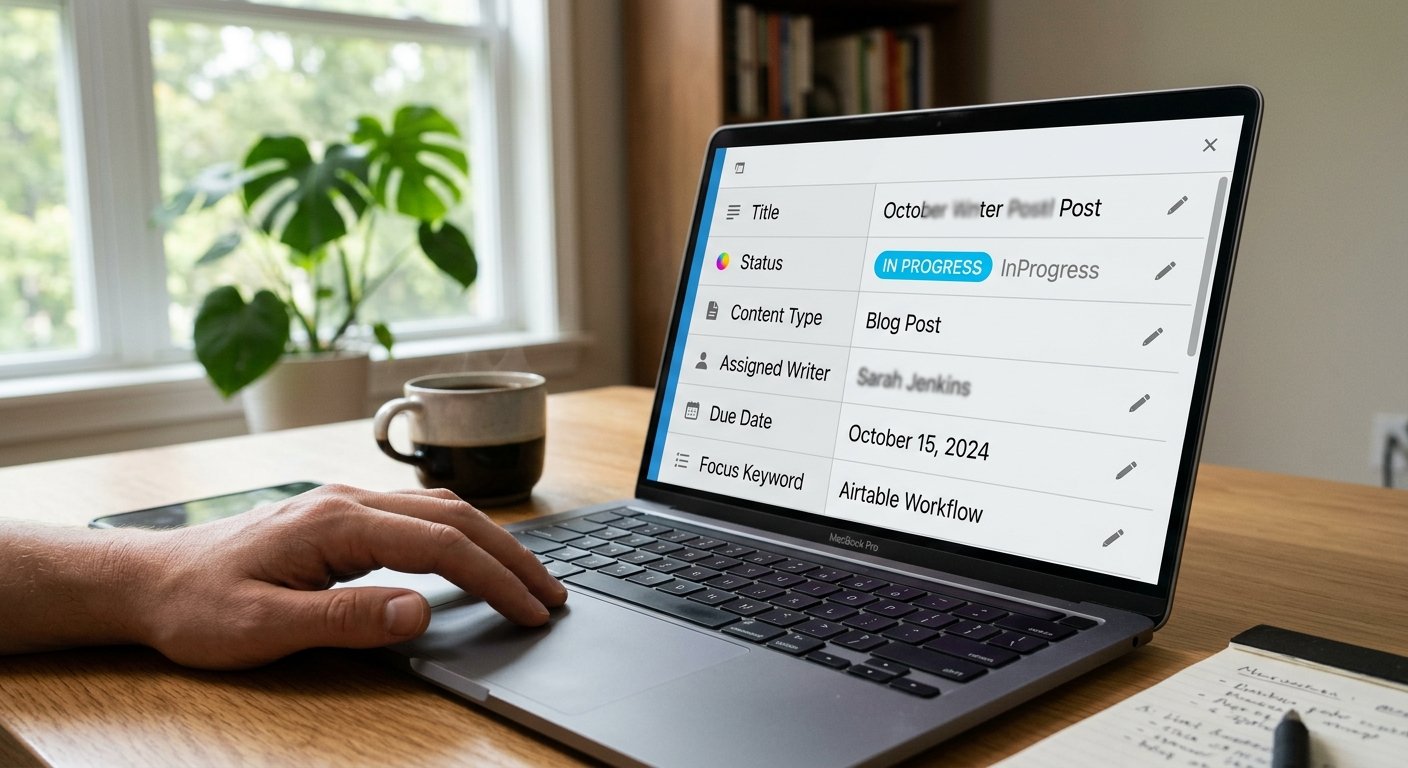
H3: Core Fields to Include in Your Content Table
- Title — the working headline of the piece
- Status — Idea, Drafting, Editing, Scheduled, Published
- Content type — blog post, newsletter, social post, video script
- Assigned writer — linked to a separate Team table
- Due date — drives your calendar view
- Focus keyword — for SEO tracking
- Word count — useful for planning and invoicing freelancers
- Publish URL — added once the piece goes live
Structuring these fields properly at the start is what makes Airtable for content management genuinely useful later, since every view and automation you build depends on this base data being consistent.
Step 2: Build Views for Every Stage of Your Workflow
The real power of Airtable for content management comes from views — different ways of looking at the exact same underlying data without creating duplicate tables.
H3: Grid View for Full Data Entry
Use the default grid view when adding new content or auditing every field at once — it’s the closest to a traditional spreadsheet.
H3: Kanban View for Workflow Tracking
Group by the Status field to get a Kanban board layout, letting you drag content cards between Idea, Drafting, Editing, and Published stages, similar to Trello but tied directly to your structured data.
H3: Calendar View for Publishing Schedule
Switch to calendar view, grouped by Due Date, to see your entire publishing schedule laid out by month — instantly answering “what’s going live this week?”
H3: Gallery View for Visual Content Review
If your content includes featured images or thumbnails, gallery view displays each piece as a visual card, which is useful for reviewing a batch of posts before scheduling.
Step 3: Link Related Tables for Full Context
A single content table works for solo creators, but managing a team benefits from linking related tables together.
H3: Useful Tables to Link
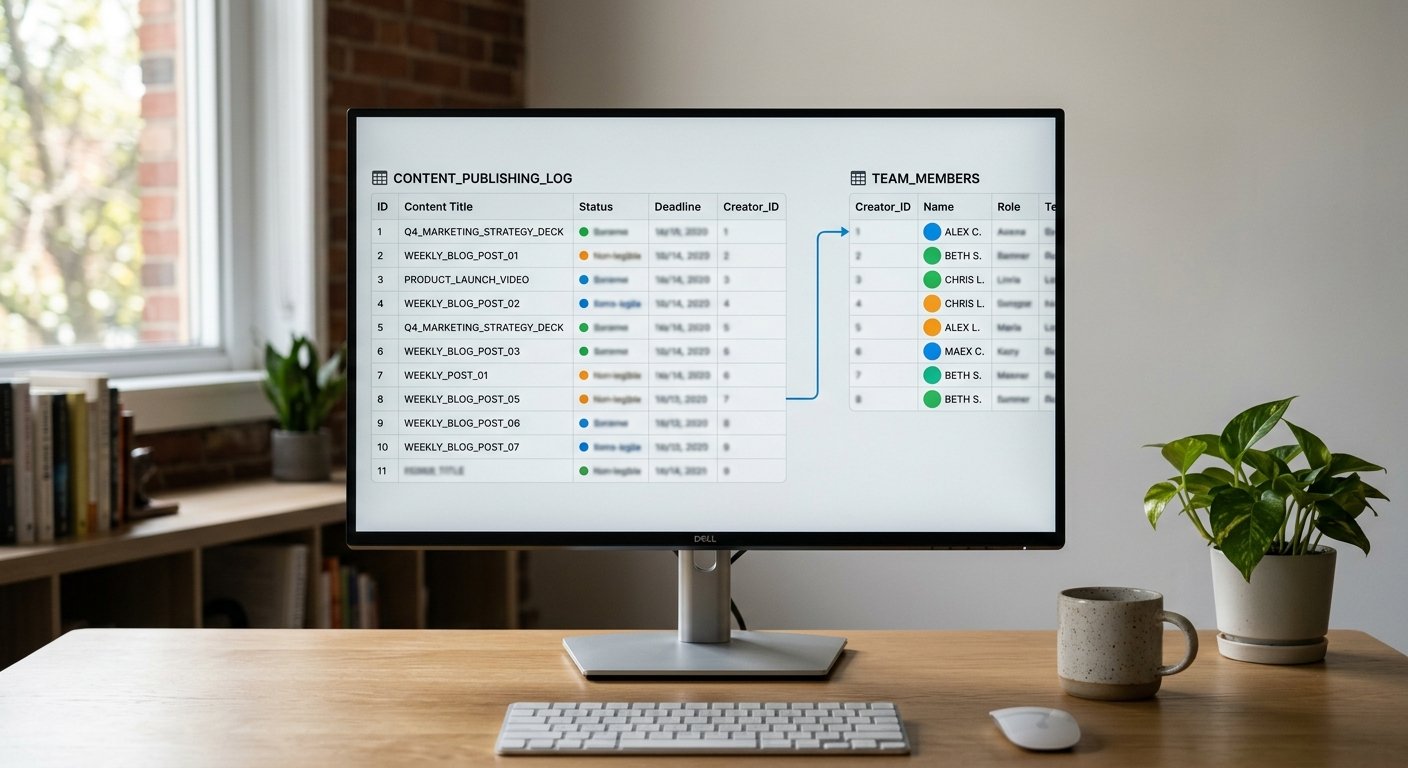
- Team — writer names, roles, and contact info, linked to each content record’s assigned writer
- Keyword Research — target keywords, search volume, and difficulty, linked to relevant content pieces
- Campaigns — themed content series, linked so you can filter everything tied to a specific campaign
Linking tables means updating a writer’s info once updates it everywhere that writer is referenced, instead of manually correcting the same detail across dozens of rows.
Step 4: Automate Repetitive Status Updates
Airtable’s built-in Automations feature removes manual busywork the same way Trello’s Butler does, but tied directly to your structured content data.
H3: Useful Automations for Content Teams
- Status change notification — send a Slack or email alert when a record’s status changes to “Ready for Review”
- Due date reminder — automatically notify the assigned writer when a due date is two days away
- Auto-tag overdue content — flag any record still marked “Drafting” past its due date
These automations mean Airtable for content management doesn’t just organize your content passively — it actively nudges the right person at the right time.
Step 5: Use Filters for Focused Work Sessions
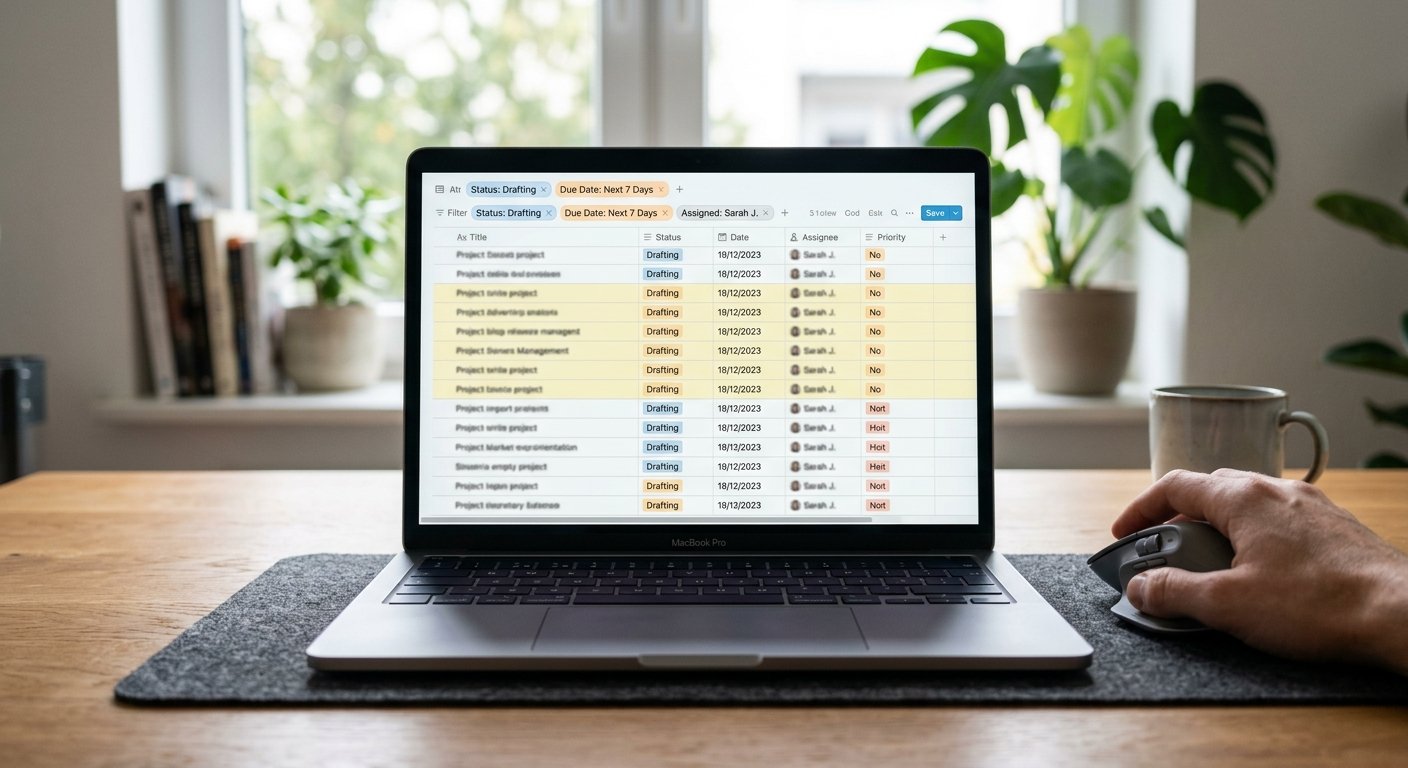
Rather than scrolling through every piece of content at once, use filters to narrow your view to exactly what you need to focus on.
- Filter by Status = Drafting and Assigned Writer = You to see only your active work
- Filter by Due Date within the next 7 days to plan your week
- Filter by Content Type = Newsletter to review just that content stream
Free Airtable Content Management Board Template
To skip the setup process, use this recommended base structure as a starting template:
Content Table Fields: Title, Status, Content Type, Assigned Writer (linked), Due Date, Focus Keyword, Word Count, Publish URL
Views to Create: Grid (all content), Kanban (by Status), Calendar (by Due Date), Filtered view (My Active Work)
Linked Tables: Team, Keyword Research, Campaigns
Recreate this structure in a new Airtable base, or duplicate a similar public template from Airtable’s Universe gallery to get a head start with pre-built formatting.
Airtable vs. Other Content Management Tools
Airtable’s biggest advantage over simpler Kanban tools is its database structure — linked records, custom field types, and multiple synchronized views. The trade-off is a steeper learning curve than a pure drag-and-drop board. If your content operation involves multiple interconnected data points (writers, keywords, campaigns, performance), Airtable’s structure pays off. For a simpler, single-pipeline workflow, a tool like Trello may still be faster to set up and maintain.
Common Mistakes to Avoid
- Skipping field structure planning — adding fields as an afterthought leads to inconsistent, hard-to-filter data later.
- Not using linked tables — keeping writer or keyword info as plain text instead of linked records makes updates and filtering harder.
- Too many views built at once — start with the few views your team actually needs, then expand as gaps appear.
- Ignoring automations — manually tracking due dates and status changes defeats much of the point of using a structured database.
Conclusion
Using Airtable for content management gives you something a plain spreadsheet or basic Kanban board can’t: structured, linked data viewable from as many angles as your workflow requires. By setting up a clear base structure, building views for each stage of your process, linking related tables, and automating repetitive updates, your content operation runs on real data instead of scattered notes. Copy the template structure above, adjust it to your team’s needs, and you’ll have a content management system that scales as your publishing volume grows.
FAQs
Is Airtable free to use for content management? Yes, Airtable’s free plan supports the core features needed for content management, including views, linked tables, and a limited number of automations.
How is Airtable different from Trello for content management? Airtable is database-driven, offering linked tables and multiple synchronized views of the same data, while Trello is primarily a visual Kanban board without built-in relational data structures.
Can I create a content calendar in Airtable? Yes, by grouping your content table’s calendar view around the due date field, Airtable displays your entire publishing schedule in a monthly calendar layout.
Does Airtable support team collaboration for content management? Yes, Airtable supports comments, assigned collaborators, shared views, and permission settings, making it suitable for teams of any size managing content together.
Can I automate reminders in Airtable for content deadlines? Yes, Airtable’s built-in Automations feature can send notifications or emails based on triggers like an approaching due date or a status change.

4 thoughts on “How to Use Airtable for Content Management (Free Board Template Included)”