


Managing an editorial workflow inside a Kanban board is great — until you need to answer a simple question: “What’s publishing this Thursday?” That’s where the Trello Calendar Power-Up comes in. It takes every dated card on your board and lays it out on a real monthly calendar, giving editorial teams a bird’s-eye view of their entire publishing schedule without leaving Trello.
This guide walks through exactly how to enable, configure, and use the Trello Calendar Power-Up so it becomes the backbone of your editorial management process.
Key Takeaways
- The Trello Calendar Power-Up turns any board with due dates into a visual monthly calendar.
- It’s a native, free feature — no third-party app or paid plan is required to enable it.
- Cards must have a due date (or date range) to appear on the calendar view.
- Combining the Power-Up with labels and custom fields creates a true editorial management system.
- It works well alongside Butler automation for recurring content and status updates.
What Is the Trello Calendar Power-Up?
The Trello Calendar Power-Up is a built-in add-on that overlays a traditional calendar grid on top of your board’s data. Instead of scrolling through lists to find what’s due when, you get a familiar month-view layout — similar to Google Calendar — populated automatically by your existing cards.
For editorial teams specifically, this means your content pipeline and your publishing schedule finally live in the same tool, reducing the back-and-forth between a planning spreadsheet and your task board.
Step 1: Enable the Calendar Power-Up
Setting it up takes less than a minute.
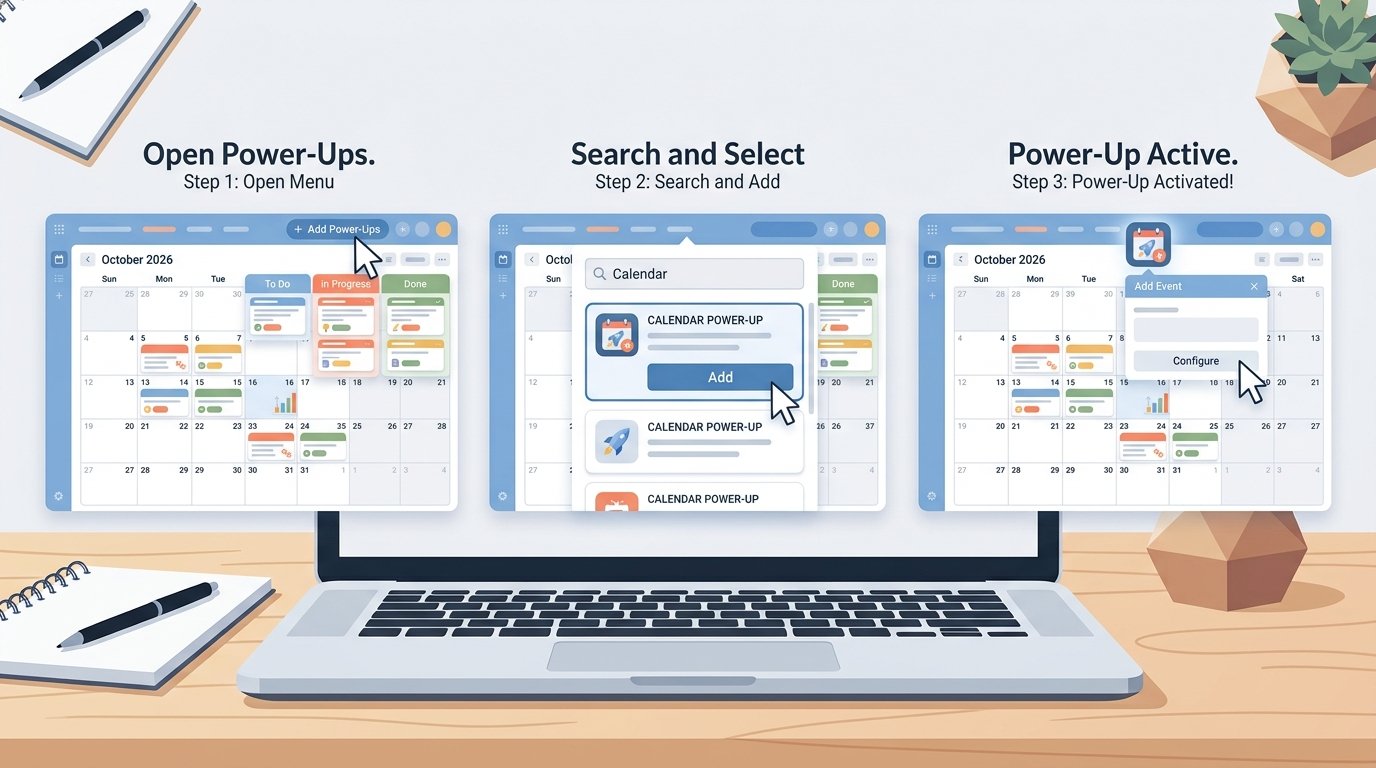
H3: Activation Steps
- Open the Trello board you want to use for editorial management.
- Click Power-Ups in the top menu bar.
- Search for “Calendar” in the Power-Ups directory.
- Click Add next to the official Calendar Power-Up.
- A new Calendar tab will appear alongside your Board and Table views.
That’s the entire setup — no configuration files, no integrations, no paid upgrade required on most plans.
Step 2: Add Due Dates to Your Cards
The Trello Calendar Power-Up only displays cards that have a due date or a start/due date range assigned. This is the most common setup mistake — teams enable the Power-Up, then wonder why their calendar looks empty.
H3: Setting a Single Due Date
Open any card, click Dates, and select a due date. This works well for one-time deliverables like a blog post or single social post.
H3: Using Date Ranges for Multi-Day Content
For content that spans several days — like a video production cycle or a multi-part email sequence — set both a start date and a due date. The Calendar Power-Up will display the card as a bar spanning those dates, which is especially useful for editorial teams managing longer production timelines.
Step 3: Organize the Calendar View with Labels
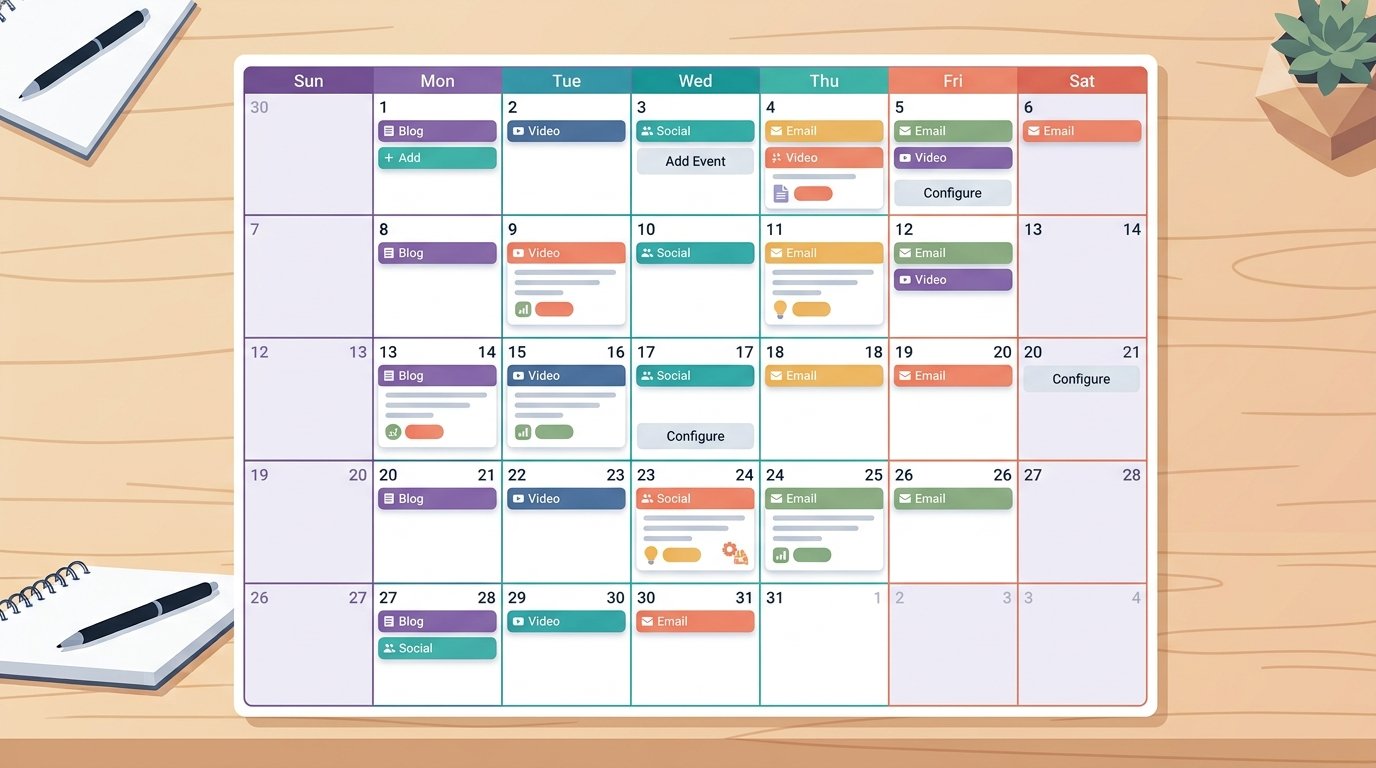
Once your calendar is populated, labels become essential for quick scanning. Color-code cards by:
- Content type (blog, newsletter, social, video)
- Status (drafting, in review, approved)
- Priority (high, standard, low)
With labels active, the Calendar Power-Up view instantly shows color patterns across the month — making it easy to spot an overloaded week or a content-type imbalance at a glance.
Step 4: Combine the Power-Up with Editorial Workflow Tools
The Calendar Power-Up works best as part of a larger system, not as a standalone feature.
H3: Custom Fields for Editorial Data
Add custom fields for word count, assigned writer, or SEO status so this information appears directly on calendar cards without needing to open each one.
H3: Butler Automation for Recurring Content
If you publish weekly newsletters or recurring series content, use Trello’s Butler automation to auto-generate cards with pre-set due dates each week — keeping your calendar populated without manual entry.
H3: Filtering the Calendar by Team Member or Content Type
Use Trello’s built-in filter tool alongside the Calendar view to isolate a single writer’s schedule or a single content category — useful for one-on-one check-ins or content audits.

Common Issues and How to Fix Them
- Calendar appears empty — check that cards have due dates assigned; the Power-Up won’t display undated cards.
- Too many cards on one day — break large content batches into individual cards with staggered due dates for a clearer view.
- Calendar feels cluttered — apply filters by label or team member to reduce visual noise during planning sessions.
- Team not checking the calendar — pin the Calendar view as the default board view so it’s the first thing team members see.
Conclusion
The Trello Calendar Power-Up is one of the simplest ways to convert a standard task board into a fully functional editorial calendar — no new software, no extra cost, and no complicated setup. By enabling the Power-Up, assigning due dates consistently, and layering in labels, custom fields, and automation, your team gets a single source of truth for what’s being published and when. Once it’s running, editorial planning stops being a guessing game and becomes a glance at your Trello board.
FAQs
How do I enable the Trello Calendar Power-Up? Go to your board’s Power-Ups menu, search for “Calendar,” and click Add. A new Calendar tab will appear automatically once it’s activated.
Why is my Trello Calendar Power-Up showing no cards? The Calendar Power-Up only displays cards with an assigned due date or date range. Undated cards won’t appear until a date is added.
Is the Trello Calendar Power-Up free? Yes, it’s included on Trello’s free plan and doesn’t require any paid upgrade to use.
Can I use the Trello Calendar Power-Up for team editorial planning? Yes. Combined with labels, custom fields, and filters, it works well as a shared editorial calendar for content teams of any size.
Does the Trello Calendar Power-Up support multi-day content tasks? Yes. By setting both a start date and a due date on a card, it will display as a date range on the calendar, ideal for longer production timelines.

2 thoughts on “How to Set Up the Trello Calendar Power-Up for Editorial Management”